Configuring User Tasks
- From the Administrator Tools tab on the SmartSolve Portal Page, click Designer > Workflow Designer.
- Create a new workflow.
- On the design canvas under the Task Library, click + > select User Task.
Result: A new User Task node is displayed.
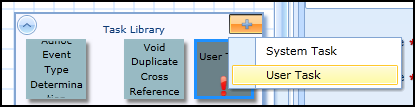
- Left click the User Task object.
Result: The Properties panel for the User Task object is displayed.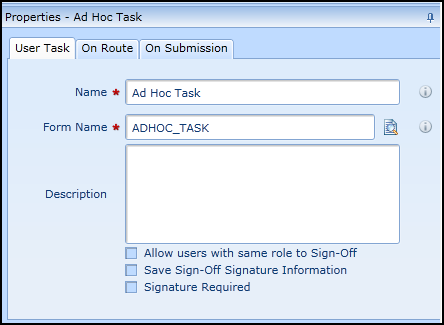
- Enter the Name of the User Task.
- Zoom to select the Form to be used for the task.
- Enter a Description (if applicable).
- Check the Allow users with same role to sign-off checkbox to allow for users with the same role to be able to sign-off on the task.
- Check the Save Sign-off Signature Information checkbox to track sign-off signatures in the record.
- Check the Signature Required checkbox to require the user to enter a signature upon sign-off of this step.
For On Route and On Submission Properties see also Validation Rules and Actions.